
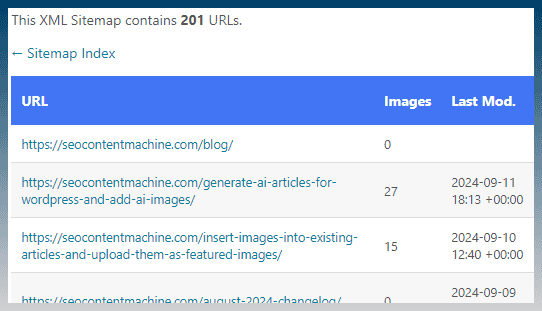
For easier indexing reasons most sites publish a sitemap xml.
This file is an easy way to get a list of all posts on a website.
We can use this file to download content to our hard drive.
How to download a sitemap xml
Most sites keep the sitemap at /sitemap.xml, /sitemap_index.xml or /post-sitemap.xml.
Open it in a browser. Ctrl+S saves the sitemap file itself.
If none of them load, check robots.txt. Most sites list the sitemap address there.
To download every page listed in it, use the sitemap downloader in SCM.
Sitemap xmls look like this eg:
https://seocontentmachine.com/post-sitemap1.xml
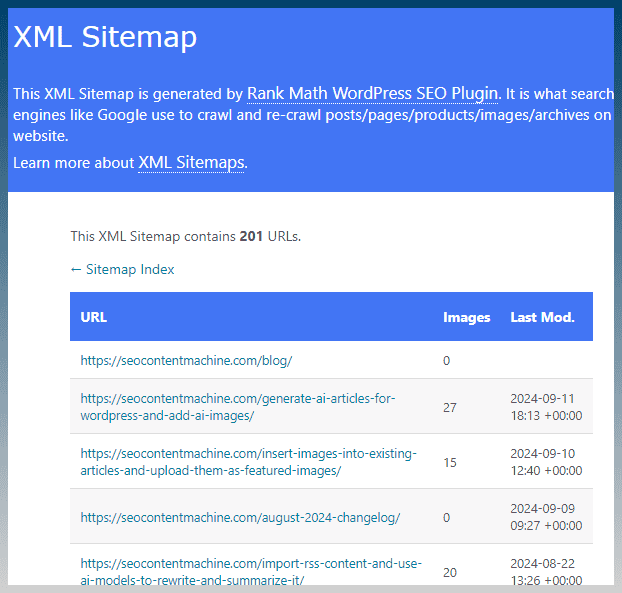
As you can see on our site, it lists all the posts.
To download this content inside SEO Content Machine, use the sitemap downloader ie ‘RSS & Sitemaps'.
Sitemap downloader ie ‘RSS & Sitemaps'
Find the tool under Data Sources.
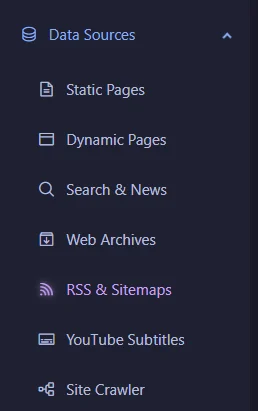
Create a new RSS & Sitemaps task.

Paste in the sitemap xmls.

You can paste in multiple different sitemaps, one per line.
Check the default settings.
Scrape tags to select the content
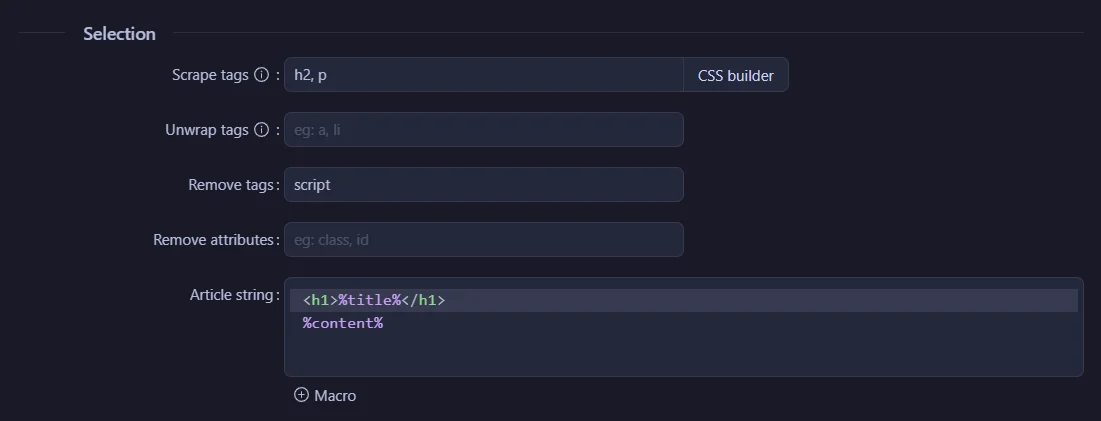
The scraper will download content using CSS selection.
The default is to download content inside H2 and P tags.

This is a comma separated list, you can add extra tags like H3, H4, DIV etc.
Add a to ‘Unwrap tags' and links are converted just to text.

You can also remove tags and attributes.

Finally, you can shape the output of the saved content via the article string.

The tool will create an article on your hard drive with a H1 tag and the content of the article below it.
The title of the article is automatically detected by the tool and provided to you via the %title% macro.
The %content% macro is the scraped content from the scrape tags property. eg: H2, P tags
Filter the sitemap download
You can manipulate the downloaded content.

The first is to limit the number of items downloaded from the sitemap.

The default is -1, so the task downloads every page in the sitemap.
There are tooltips as well!

Set it to 10 on the first run to test your scrape tags.

You can use regex to find and replace text content.
There is also a toggle to remove all HTML if you need a plain text article.
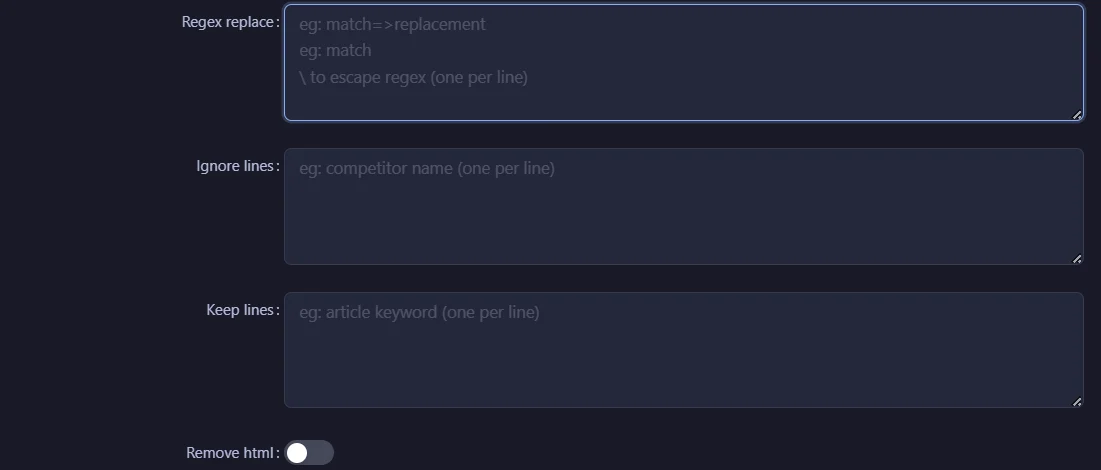
You can re-wrap all lines in another set of tags.

Export
Files save to your project folder.
‘Filename string' names each file, the default is %title%.txt.
Add %domain% to ‘Save location' to keep each site in its own folder.

Rewriter
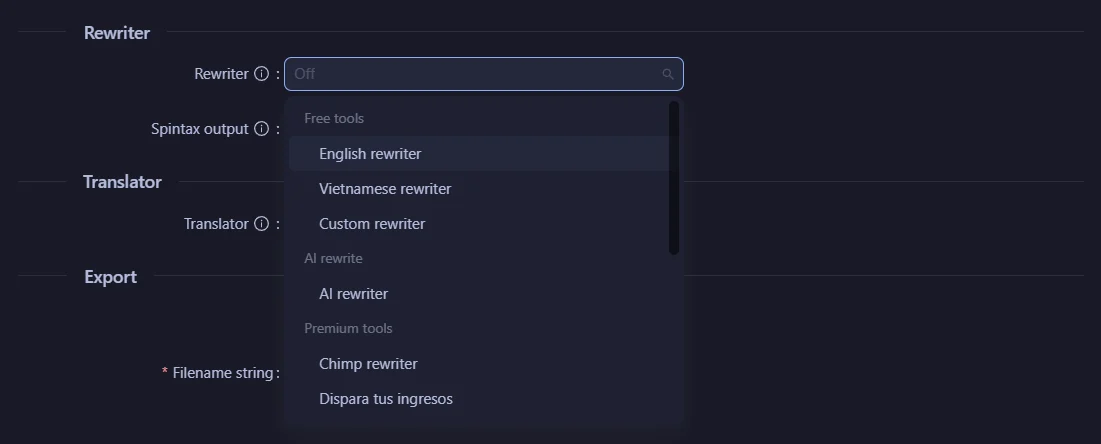
You can use a rewriter on scraped content to make it unique.

Pick ‘AI rewriter' to use an AI model.
Run the sitemap download
Click run to start the task.

Output
Once the task starts running, click on its row to see a task log.
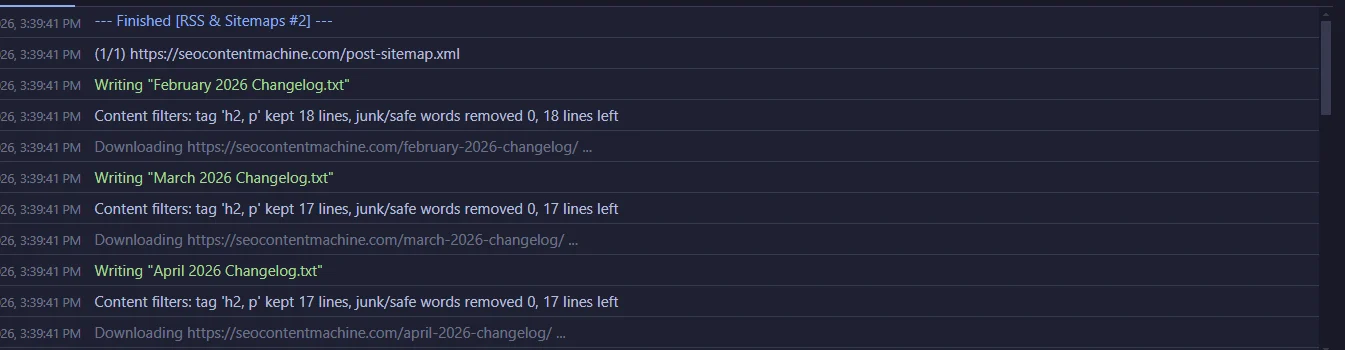
Posts are found from the sitemap and downloaded to your hard drive.
A sitemap index works too. SCM follows the sitemaps listed inside it.
Sitemap download FAQ
How do I download a sitemap xml?
Open the sitemap address in a browser and press Ctrl+S. Most sites keep it at /sitemap.xml or /sitemap_index.xml, and robots.txt lists it.
How do I download every page in a sitemap?
Paste the sitemap address into a RSS & Sitemaps task in SEO Content Machine and click run. Each page is saved as a text file.
Does the sitemap downloader take a sitemap index?
Yes. SCM reads the index and follows every sitemap inside it.
Can I download only some of the pages?
Set ‘Post download limit' to a number. -1 downloads every page.
Does it work with RSS feeds?
Yes. The same task takes RSS and Atom feed urls, one per line.